Order Rules
Order Rules
Control which Shopify orders sync to Odoo and how they're created based on payment status, fulfillment status, and order source.
Quick Setup
- Go to Settings → Order Settings
- Enable the order auto sync toggle
- Select your conditions
- Save
Rule Groups
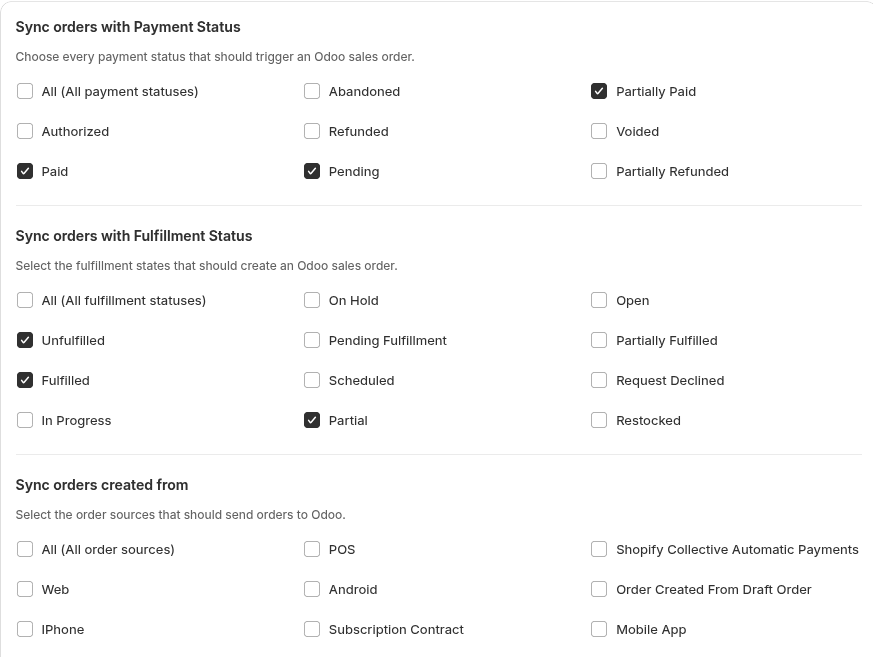
1. Payment Status
Choose which payment statuses should sync to Odoo:
- All: Select all at once
- Paid: Fully paid orders
- Pending: Pending payment
- Partially Paid: Partially paid
- Authorized: Authorized but not captured
- Abandoned: Abandoned orders
- Refunded: Fully refunded
- Partially Refunded: Partially refunded
- Voided: Voided orders
2. Fulfillment Status
Choose which fulfillment statuses should sync:
- All: Select all at once
- Unfulfilled: Not fulfilled yet
- Fulfilled: Completely fulfilled
- Partial: Partially fulfilled
- In Progress: Currently processing
- On Hold: On hold
- Pending Fulfillment: Awaiting fulfillment
- Scheduled: Scheduled for fulfillment
- Open: Open orders
- Partially Fulfilled: Partially fulfilled
- Request Declined: Declined requests
- Restocked: Restocked orders
3. Order Source (Optional)
Filter orders by where they came from:
- All: All sources
- Web: Web store
- POS: Point of Sale
- iPhone/Android: Mobile apps
- Mobile App: Mobile app
- Subscription Contract: Subscription orders
- Shopify Collective Automatic Payments: Collective payments
- Order Created From Draft Order: Draft orders
Custom Source: Type a source name and click "Add" to include custom sources.
4. Include Shopify Fields
Add extra details to Odoo sales orders:
- Note Attributes: Include order notes
- Order Tags: Include order tags
5. Create Orders in Odoo As
Choose what gets created in Odoo when orders sync:
Options:
- Draft Sale Order: Only draft sale order (no invoices)
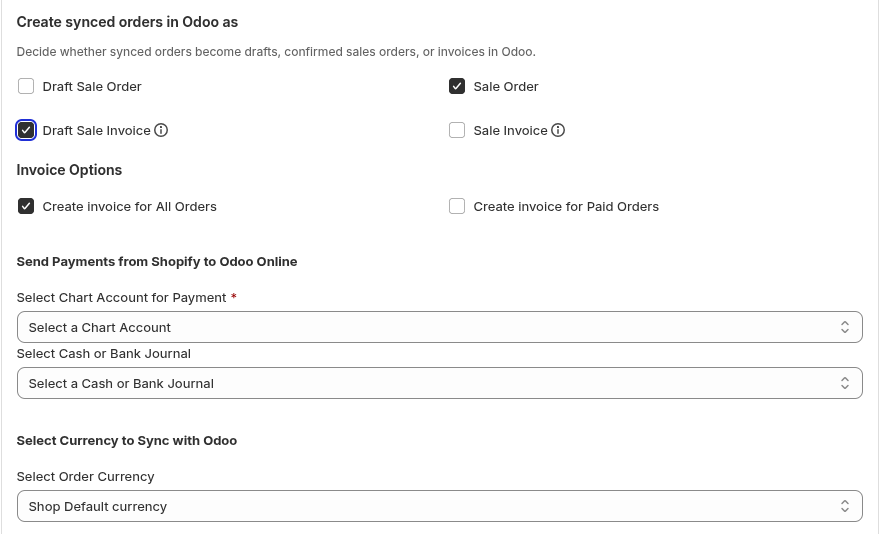
- Sale Order: Confirmed sale order (can add invoices)
- Draft Sale Invoice: Only draft invoice (no sale order needed)
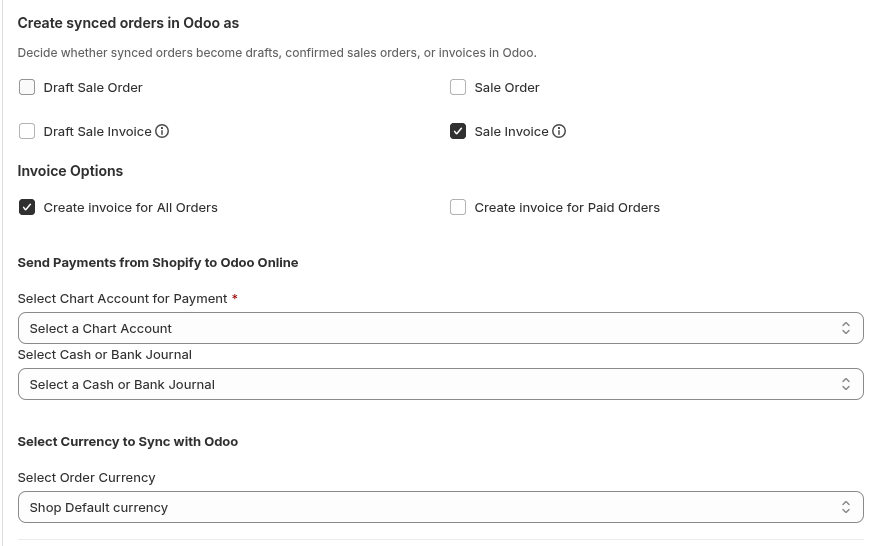
- Sale Invoice: Only confirmed invoice (no sale order needed)
Sale Order Only:

Sale Invoice Only:
Sale Order + Draft Invoice:
Sale Order + Sale Invoice:
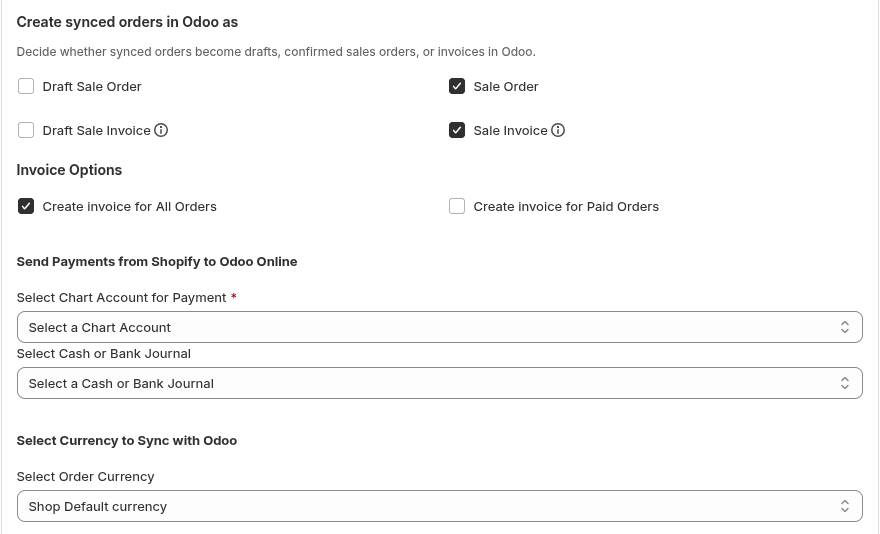
Invoice Settings:
- All Orders or Paid Orders: When to create invoices
- Chart Account: For invoice payments
- Bank Journal: For payment processing
- Currency: Shop default or customer currency
6. Start Syncing From
Set the earliest date to sync orders. Only orders from this date forward will sync.

7. Order Prefix (Optional)
Add a custom prefix to Odoo order numbers (e.g., "SyncoOrders" → "SyncoOrders0001"). Leave blank for default numbering.

8. Shopify Order Number Sync
Use Shopify order numbers in Odoo for consistency.

9. Refund Order Sync
When enabled, refunds automatically:
- Create credit notes in Odoo
- Restore stock for refunded items

How It Works
Orders sync only if they match ALL selected conditions:
- Payment status (at least one selected)
- Fulfillment status (at least one selected)
- Order source (if specified)
- Date range (if specified)
Example: If you select "Paid" + "Unfulfilled" + "Web", only paid, unfulfilled web orders will sync.
Important
Orders must match all selected conditions to sync. The "Order Source" filter is optional.
Support
If you need help with order rules:
- Email: support@techspawn.com
- Documentation: Check our help center for detailed guides